
A Linux PC that feels slow is often being held back by one specific problem: a process using all the memory, an SSD nearly full, a laptop stuck in power-saver mode, or a service delaying startup. The fastest way to speed up Linux is to find that bottleneck first, then make one measured change at a time. These steps work across Ubuntu, Debian, Fedora, and Linux Mint. Most are reversible, and none require a “magic optimizer.”
This guide expands on our earlier Linux performance troubleshooting overview with a repeatable diagnostic workflow, distro-specific update commands, and safer advice about services, swap, storage, and laptop power.

Before you change anything: find the bottleneck
Reboot once, open the apps that normally feel slow, and note what is slow: boot, login, launching apps, browsing, or everything. Open System Monitor or run top. Check memory and disk space with free -h and df -h. If one process consistently dominates CPU or RAM, investigate that app before changing system settings. Save this baseline so you can tell whether a fix helped.
15 proven fixes to speed up Linux
1. Update packages and reboot when the kernel changes
Updates include bug fixes for kernels, drivers, and desktop components. Use your distro’s graphical updater, or the appropriate command: Ubuntu, Debian, and Mint: sudo apt update && sudo apt full-upgrade; Fedora: sudo dnf upgrade --refresh. Review package removals before accepting them. Restart after kernel or graphics-driver updates so the running system actually uses the new version. See the Fedora update guide.
2. Find apps that launch at login
Disable only apps you recognize and do not need at sign-in. Ubuntu and GNOME provide Startup Applications; KDE Plasma has Autostart in System Settings; Linux Mint exposes Startup Applications from its menu. Chat clients, cloud sync, game launchers, and multiple applets can add delay and background memory use. Keep security, accessibility, backup, and hardware utilities you rely on.
3. Diagnose slow boot before disabling services
On systems using systemd, run systemd-analyze time and systemd-analyze critical-chain. They show where boot time is spent; systemd-analyze blame can help identify slow-starting units, but it is not a simple “disable the longest service” list. Some units wait on another task and are not themselves the cause. The systemd-analyze manual explains these limits.
4. Leave breathing room on the system drive
Check df -h and empty the desktop Trash. Remove old downloads and large files you no longer need. On Ubuntu, Debian, and Mint, sudo apt clean clears downloaded package archives; on Fedora, sudo dnf clean packages clears cached packages. These commands do not remove installed apps. Avoid deleting files from /var or your home folder by hand unless you know what they are.
5. Check whether the drive is an HDD or SSD
Run lsblk -o NAME,ROTA,TYPE,SIZE,MOUNTPOINTS. A rotational value of 1 usually indicates a hard drive; 0 usually indicates solid-state storage. An aging HDD can make login, updates, and app launches feel sluggish even when CPU use is low. If the machine still has an HDD, replacing it with an SSD often gives a larger real-world improvement than tuning obscure settings. Back up before hardware work.
6. Make sure SSD TRIM is scheduled
TRIM helps many SSDs manage deleted blocks efficiently. On systemd distributions, check with systemctl status fstrim.timer. If the timer exists but is inactive, consult your distro’s documentation before enabling it; support depends on the drive and filesystem. You can run sudo fstrim -av once to request TRIM on supported mounted filesystems. Do not schedule repeated manual runs if the system already runs the timer.
7. Identify disk activity that stalls the desktop
If the system freezes while opening files or switching apps, watch System Monitor’s disk activity and top for I/O wait. A backup, indexer, cloud-sync client, or package update can saturate a slow drive. Let a one-off task finish; reschedule persistent background work for a quieter time. Install extra monitoring tools only if the built-in tools do not reveal the cause.
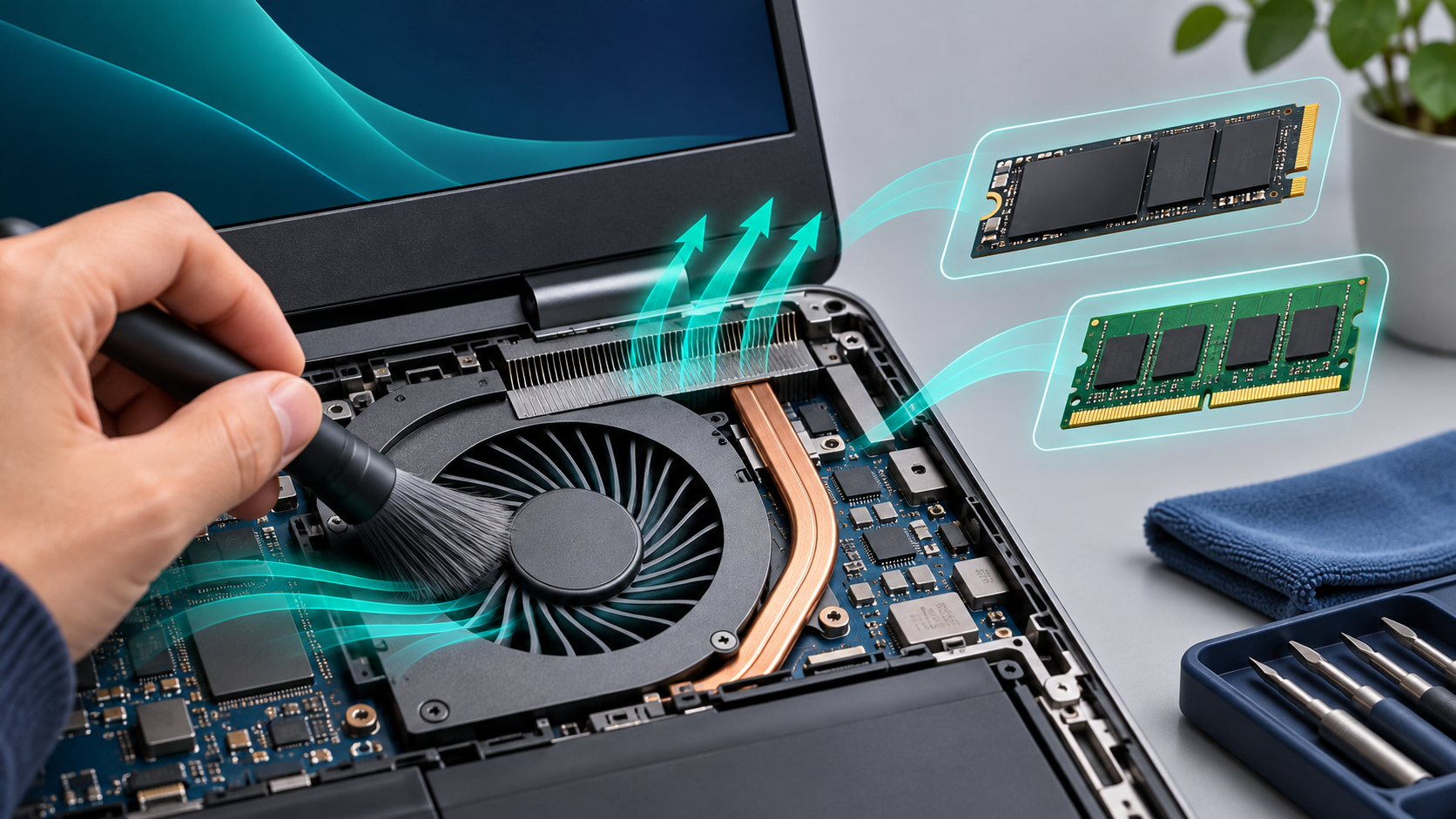
8. Check for overheating or blocked airflow
A laptop can slow its processor to control heat. If fans run loudly and performance drops after a few minutes, place the laptop on a hard surface, clear blocked vents, and check for dust. Use the manufacturer’s safe cleaning guidance; do not open a device under warranty unless permitted. On supported systems, a hardware monitor can show temperatures. Persistent overheating may need professional cleaning or a fan repair.
9. Select the right laptop power profile
When plugged in, check whether your desktop is using Power Saver. Ubuntu’s Power panel offers Balanced, Power Saver, and—on supported hardware—Performance; Fedora systems may expose similar choices through desktop settings. Use Performance only when you need it: it can increase heat, fan noise, and battery use. Ubuntu documents how to choose a power profile. Avoid random CPU-governor commands copied from old guides.
10. Use the recommended graphics driver
For choppy animations, video, or external displays, check your distro’s driver utility and install supported graphics drivers and firmware through its official repositories. Ubuntu’s Additional Drivers tool and Fedora’s documented third-party driver path are safer than running an arbitrary installer. After a driver change, reboot and retest the same app. If the issue began after an update, record the driver and kernel version before rolling anything back.
11. Reduce browser memory pressure
Browsers can use more RAM than the desktop itself. Close unused windows, remove extensions you no longer need, and check the browser’s own task manager for a runaway tab. If the slowdown disappears when the browser is closed, tune the browser or its extensions before replacing the desktop environment.
12. Investigate memory pressure instead of blindly changing swap
Run free -h and swapon --show, then watch vmstat 1 for sustained swapping while the PC feels slow. Swap is a safety net; some use is normal. Do not set vm.swappiness to a fixed value from a blog without measuring. Fedora commonly enables zram by default; on other systems, check your current swap setup and the distribution’s guidance before adding another swap device.
13. Simplify desktop effects and extensions
If menus or window animations stutter on older graphics hardware, turn off optional animations or temporarily disable recently added GNOME extensions, Cinnamon applets, or KDE effects. Test one change at a time. For lower-powered hardware, a lighter desktop can help, but changing desktop environments is a bigger migration; back up settings and try it from a separate session first. Our Linux laptop installation guide can help when planning a broader reinstall.
14. Remove only services you understand
List enabled services with systemctl list-unit-files --state=enabled, but do not disable a service simply because its name is unfamiliar. Network, printing, Bluetooth, login, backup, and hardware services may be needed even when they appear idle. If you know a program you installed is unnecessary, turn it off through that program’s settings first, then reboot and verify that nothing you use stopped working.
15. Consider a practical hardware upgrade
When CPU and memory stay saturated during normal use, close the resource monitor and look at the actual workload. A supported RAM upgrade can help if the machine regularly runs out of memory; an SSD can transform an HDD-based PC. If you are shopping for a replacement or reinstall, compare lightweight options in our 2026 Linux distro guide and Linux Mint 27 overview. Always check the manufacturer’s compatibility information before buying parts.
What to do if Linux is still slow
Repeat the same checks after each change. If CPU, RAM, and disk are not saturated, the delay may be a specific app, network connection, graphics issue, failing drive, or hardware limitation. Check system logs for errors and back up important files if a drive reports health warnings. Avoid “one-click optimizer” apps that promise a universal speed boost: they can remove useful files or change settings without addressing the real problem.
Frequently asked questions
What is the fastest way to speed up Linux?
Find the bottleneck first. Closing a runaway process, freeing a nearly full disk, or changing a laptop from Power Saver can help immediately when that is the cause. For HDD-based PCs, an SSD upgrade often produces the clearest improvement.
Does this work on Ubuntu, Debian, Fedora, and Linux Mint?
Yes. The diagnostic steps apply broadly. Package commands and desktop settings differ, so follow the distribution-specific examples and use the graphical updater if you are unsure.
Should I disable Linux services to make boot faster?
Usually not as a first step. Measure boot time, inspect the critical chain, and disable only a service you installed and understand. The longest entry in a timing report is not always the cause of the delay.
Will changing swappiness make Linux faster?
Not necessarily. Swap behavior depends on available memory, workload, and distro defaults. Measure memory pressure first, and keep the default unless you have evidence that a change helps your specific system.
Can Linux be fast on an old laptop?
Often, especially with an SSD, enough RAM for your apps, a clean cooling path, and a desktop that suits the hardware. A lightweight distro helps most when limited resources—not a failing drive or one runaway app—are the real constraint.
Bottom line
To speed up Linux in 2026, start with evidence: check resource use, boot timing, storage, temperature, and power mode. Make one change, repeat the same test, and keep the fix only if it improves the experience. That approach works across Ubuntu, Debian, Fedora, and Linux Mint—and avoids risky tweaks that make troubleshooting harder.
More Linux guides: running local AI on Linux and managing Flatpak permissions.