
Why Learning the Linux Terminal Still Matters
Linux Terminal Tips and Tricks
Even in 2026, the Linux terminal remains one of the most powerful tools you can use. While graphical interfaces have improved dramatically, the command line still offers:
- Faster workflows
- More control over your system
- Better automation capabilities
- Access to advanced features not available in GUIs
Whether you’re a beginner or an experienced user, mastering a few practical tricks can dramatically improve your daily workflow.
25 Linux Terminal Tips and Tricks
1. Use Tab Completion Everywhere
Press Tab while typing commands or file names to auto-complete them.
👉 Saves time and reduces typing errors.
2. Navigate Faster with cd -
Quickly switch to your previous directory:
cd -
3. Use !! to Repeat Last Command
Instead of retyping:
!!
Perfect after forgetting sudo:
sudo !!
4. Search Command History
Press:
Ctrl + R
Start typing to search previous commands instantly.
5. Clear Terminal Without Losing History
Ctrl + L
Better than clear for quick cleanup.
6. Run Commands in Background
Add & at the end:
firefox &
7. Bring Background Jobs Back
fg
8. Kill Processes Easily
Find process:
ps aux | grep appname
Kill it:
kill -9 PID
9. Use htop Instead of top
More readable and interactive system monitoring.
10. Combine Commands with &&
sudo apt update && sudo apt upgrade
Runs the second command only if the first succeeds.
11. Redirect Output to a File
ls > files.txt
12. Append Instead of Overwriting
echo "new line" >> file.txt
13. Count Lines, Words, Characters
wc filename.txt
14. View File Content Smartly
less filename.txt
Scrollable and user-friendly.
15. Find Files Instantly
find . -name "file.txt"
16. Use Aliases to Save Time
Example:
alias update='sudo apt update && sudo apt upgrade'
17. Monitor Disk Usage
du -sh *
18. Check System Info Quickly
uname -a
19. Watch Logs in Real Time
tail -f logfile.log
20. Download Files from Terminal
wget URL
21. Test Internet Connection
ping google.com
22. Use history Smartly
history | grep keyword
23. Run Commands as Another User
sudo -u username command
24. Edit Files Quickly with Nano
nano file.txt
25. Combine Everything for Automation
Example:
tar -czf backup.tar.gz folder && rm -rf folder
Pro Tips Most Users Don’t Know
- Use
Ctrl + A→ jump to start of line - Use
Ctrl + E→ jump to end - Use
Ctrl + U→ delete entire line - Use
Ctrl + K→ delete from cursor to end
These shortcuts alone can double your speed.
Common Mistakes to Avoid
❌ Running commands blindly with sudo
❌ Deleting files without checking (rm -rf)
❌ Ignoring error messages
❌ Not using history or aliases
Final Thoughts on Linux Terminal Tips
You don’t need to memorize hundreds of commands to be effective in Linux. Just mastering a handful of practical tricks can make you significantly faster and more confident.
The terminal is not just a tool—it’s a productivity multiplier.
FAQ (SEO Boost Section)
Are Linux terminal skills still useful?
Yes, they are essential for developers, sysadmins, and power users.
Is the terminal faster than GUI?
In many cases, significantly faster.
Can beginners learn terminal easily?
Yes—starting with simple commands like these is the best approach.

Fortnite on Linux: Release Date, Requirements and Which Distros Will Work
Short answer: Epic Games confirmed on October 14, 2026 that Fortnite is coming to Linux, but there’s…

Best Linux Distro for Developers in 2026: 7 Top Picks by Use Case
The best Linux distro for developers is Ubuntu LTS for compatibility, Fedora Workstation for up-to-d…

Immutable Linux Distros Explained: The Image-Based OS Revolution in 2026
Immutable Linux distros have moved from a niche experiment to a mainstream desktop option in 2026. F…

GhostLock: A 15-Year Linux Kernel Bug Has a 5-Second Public Root Exploit
A Linux kernel vulnerability that has been hiding in plain sight since 2011 was publicly disclosed o…
How to Install Linux on a Laptop: A Step-by-Step Guide – 2026
Switching to Linux can breathe new life into an aging laptop, boost your privacy, and hand you full …
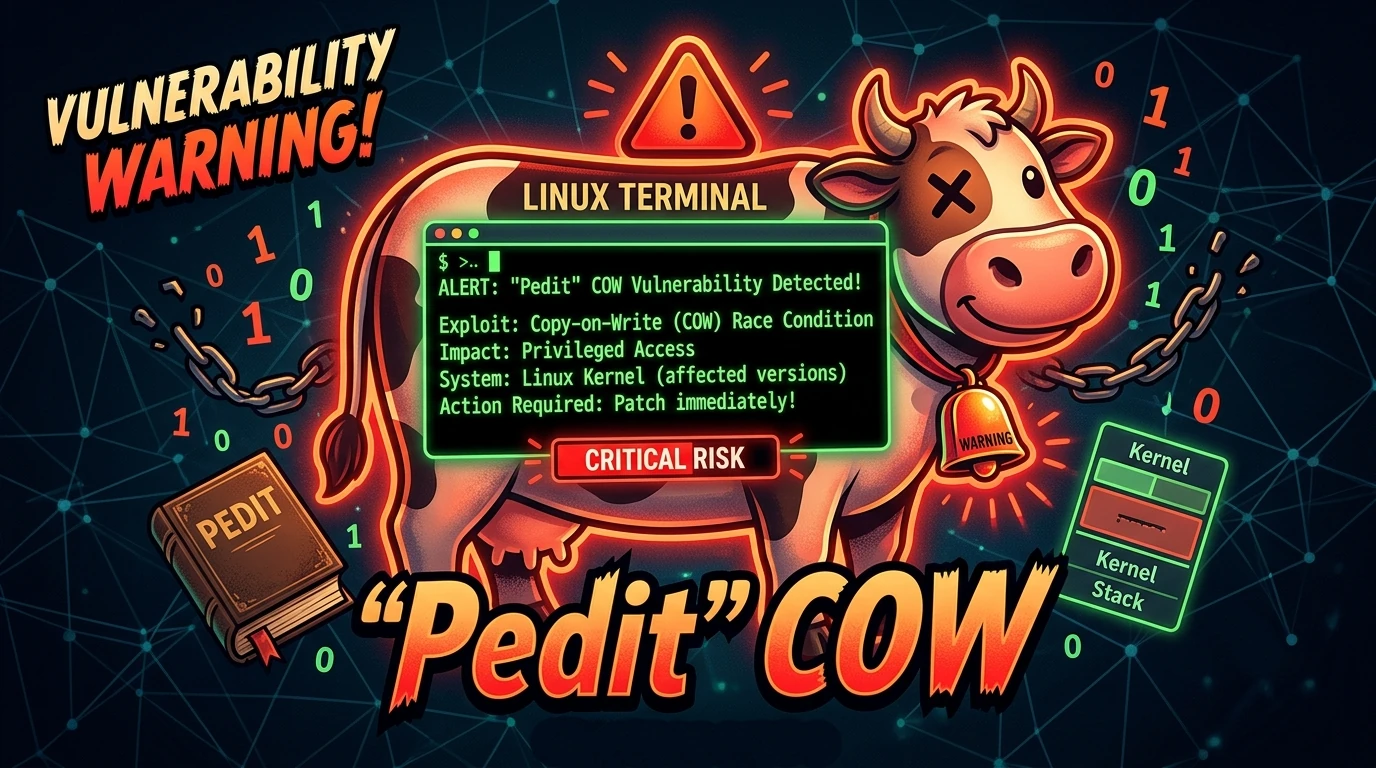
Pedit COW Explained: The Linux Kernel Flaw Letting Local Users Become Root
A new Linux kernel vulnerability nicknamed “pedit COW” has become one of the biggest sec…