
Skill level: Intermediate | Time to complete: 30–40 minutes | Tested on: Ubuntu 24.04, Debian 12, Fedora 41
How to Harden Your Linux System
Most Linux systems are installed with convenience in mind, not maximum security. The default settings are reasonable for a desktop, but they leave several doors open that you probably want shut — especially if your machine ever connects to the internet, runs any services, or stores anything important.
This guide walks you through the most impactful security hardening steps you can do right now, without breaking your system or turning it into an unusable fortress. Everything here is practical, reversible, and explained so you understand why you’re doing it, not just what to type.
Step 1: Make Sure Your System Is Fully Up to Date
This sounds obvious, but a surprising number of compromises happen on systems with months-old packages. Unpatched vulnerabilities are the number one attack vector on Linux.
bash
# Debian/Ubuntu
sudo apt update && sudo apt upgrade -y

# Fedora
sudo dnf upgrade -y

# Arch
sudo pacman -Syu
While you’re at it, enable automatic security updates so critical patches don’t wait for you:
bash
# Debian/Ubuntu only
sudo apt install unattended-upgrades -y
sudo dpkg-reconfigure --priority=low unattended-upgrades
Select “Yes” when prompted. This installs security updates automatically without touching other packages.
Step 2: Audit Your Running Services
Every service running on your machine is a potential entry point. Most fresh Linux installs run more than you need.
List everything currently active:
bash
sudo systemctl list-units --type=service --state=runningAsk yourself: do I actually use this? Common candidates for disabling on a desktop machine:
bash
# Bluetooth (if you don't use it)
sudo systemctl disable --now bluetooth

# Avahi (mDNS/Zeroconf — rarely needed on a personal machine)
sudo systemctl disable --now avahi-daemon

# Cups (printer daemon — disable if you have no printer)
sudo systemctl disable --now cups
To re-enable any of these later:
bash
sudo systemctl enable --now bluetoothYou’re not deleting anything — just stopping the service from running until you need it.
Step 3: Configure the Firewall (UFW)
Linux has a powerful built-in firewall (netfilter/iptables), but configuring it directly is complex. UFW (Uncomplicated Firewall) is the right tool for most users — it’s straightforward, reliable, and available on all major distros.
Install and enable it:
bash
# Debian/Ubuntu
sudo apt install ufw -y

# Fedora
sudo dnf install ufw -y
Set sensible defaults — deny all incoming, allow all outgoing:
bash
sudo ufw default deny incoming
sudo ufw default allow outgoing
Allow only what you actually need. For a typical desktop with SSH access:
bash
# Allow SSH (only if you use it — skip this if you don't)
sudo ufw allow ssh

# Allow a specific port (e.g. a local web server on port 8080)
sudo ufw allow 8080/tcp
Enable the firewall:
bash
sudo ufw enableCheck the status:
bash
sudo ufw status verboseImportant: If you’re connecting via SSH right now, make sure you run
sudo ufw allow sshbefore enabling the firewall, or you’ll lock yourself out.
Step 4: Secure SSH (If You Use It)
If SSH is enabled on your machine, the default configuration has several weaknesses worth fixing. Open the SSH config file:
bash
sudo nano /etc/ssh/sshd_configFind and change (or add) these lines:
# Disable root login entirely
PermitRootLogin no

# Disable password authentication (use keys instead — see below)
PasswordAuthentication no

# Limit authentication attempts
MaxAuthTries 3

# Set idle timeout to 5 minutes (300 seconds)
ClientAliveInterval 300
ClientAliveCountMax 0

# Only use SSH protocol 2
Protocol 2
Save and restart SSH:
bash
sudo systemctl restart sshdSetting Up SSH Key Authentication
Before disabling password auth, set up a key pair. On your local machine (not the server):
bash
ssh-keygen -t ed25519 -C "your_comment_here"Copy the public key to the target machine:
bash
ssh-copy-id username@your-server-ipTest the key login works before disabling passwords:
bash
ssh username@your-server-ipOnce you can log in with your key, go back and set PasswordAuthentication no in sshd_config.
Step 5: Fail2Ban — Automatically Block Brute Force Attacks
Even with key-only SSH, bots will hammer your login port. Fail2Ban monitors log files and temporarily bans IPs that show suspicious behaviour (too many failed login attempts).
Install it:
bash
# Debian/Ubuntu
sudo apt install fail2ban -y

# Fedora
sudo dnf install fail2ban -y
Create a local config file (never edit the default — it gets overwritten on updates):
bash
sudo cp /etc/fail2ban/jail.conf /etc/fail2ban/jail.local
sudo nano /etc/fail2ban/jail.local
Find the [sshd] section and configure it:
ini
[sshd]
enabled = true
port    = ssh
filter  = sshd
maxretry = 3
bantime  = 1h
findtime = 10m
This bans any IP that fails SSH login 3 times within 10 minutes, for 1 hour.
Start and enable Fail2Ban:
bash
sudo systemctl enable --now fail2banCheck the status and see active bans:
bash
sudo fail2ban-client status sshdTo manually unban an IP (e.g. yourself after a typo):
bash
sudo fail2ban-client set sshd unbanip YOUR_IP_ADDRESSStep 6: Check for Suspicious Open Ports
See what’s actually listening for connections on your machine:
bash
sudo ss -tulnpThe flags mean: TCP (-t), UDP (-u), Listening only (-l), Numeric ports (-n), Show process (-p).
Look at the output critically. You should recognise everything listed. Common legitimate entries include:
127.0.0.1:631— CUPS printer service (local only, fine)0.0.0.0:22— SSH (intentional, if you use it)127.0.0.1:53— systemd-resolved (DNS, local only)
Red flags are services listening on 0.0.0.0 or ::: (all interfaces) that you don’t recognise or didn’t intentionally set up. Investigate anything unexpected with:
bash
# Find which package owns the process
sudo lsof -i :PORT_NUMBER
Step 7: Audit Sudo Privileges
Overly permissive sudo access is a common misconfiguration, especially on machines set up quickly or shared with others.
See who has sudo access:
bash
grep -Po '^sudo.+:\K.*$' /etc/groupReview the sudoers file safely (never edit it directly):
bash
sudo visudoUnless you have a specific reason, regular users should require a password for sudo and shouldn’t have NOPASSWD entries. If you see something like:
username ALL=(ALL) NOPASSWD: ALL…and it shouldn’t be there, remove it.
Also check for sudoers drop-in files that might override the main config:
bash
ls /etc/sudoers.d/Step 8: Enable Full Disk Encryption (For New Installs)
If your laptop gets stolen, full disk encryption (FDE) is the only thing standing between the thief and your data. On Linux, this is done with LUKS (Linux Unified Key Setup).
The catch: LUKS must be set up at install time. You can’t add it to a running system without wiping and reinstalling.
If you’re setting up a fresh machine, every major distro installer now offers FDE as a checkbox option:
- Ubuntu: “Advanced features → Use LVM with encryption”
- Fedora: “Encrypt my data” checkbox in the storage step
- Debian: “Guided — use entire disk and set up encrypted LVM”
Check whether your current system uses LUKS:
bash
lsblk -o NAME,FSTYPE,MOUNTPOINT | grep -i cryptIf you see crypto_LUKS in the output, you’re already encrypted.
Step 9: Regularly Audit Installed Packages
Software you installed once and forgot about can contain vulnerabilities. Periodically review what’s on your system:
bash
# Debian/Ubuntu — list manually installed packages
apt-mark showmanual | sort

# Fedora
dnf history userinstalled
Remove anything you no longer use:
bash
sudo apt remove --purge packagename  # Debian/Ubuntu
sudo dnf remove packagename          # Fedora
Also check for packages with known vulnerabilities:
bash
# Debian/Ubuntu
sudo apt install debsecan -y
debsecan --suite $(lsb_release -cs) --only-fixed
This lists installed packages with published CVEs that have fixes available — prioritise updating those.
A Quick Security Checklist – How to Harden Your Linux System
Once you’ve worked through this guide, here’s a fast reference to verify your work:
bash
# 1. Firewall active?
sudo ufw status

# 2. Fail2Ban running?
sudo systemctl status fail2ban

# 3. Unnecessary services disabled?
sudo systemctl list-units --type=service --state=running

# 4. Open ports look right?
sudo ss -tulnp

# 5. System fully updated?
sudo apt list --upgradable 2>/dev/null | head -20
What Not to Do
A few common “hardening tips” you’ll find online that are more trouble than they’re worth on a personal Linux machine:
- Disabling IPv6 entirely — breaks many modern applications and DNS resolvers for minimal real-world security gain
- Running everything in a VM or container “just to be safe” — valid for servers, overkill for a desktop
- Installing SELinux on a desktop Ubuntu system — AppArmor (already active) is appropriate for desktop use; SELinux is for enterprise servers and will cause confusing breakages
Security hardening is about reducing your actual attack surface, not achieving a perfect score on a checklist. The steps above cover the most realistic threats for a personal Linux machine. A system you understand and maintain is more secure than one locked down to the point you can’t work with it.
What to Do Next
With these basics covered, the natural next steps are:
- Set up audit logging with
auditdto track who accesses sensitive files - Configure AppArmor profiles for applications that handle sensitive data
- Use a password manager (Bitwarden, KeePassXC) and stop reusing credentials
- Enable 2FA on your user account with a TOTP app and PAM
Security is a habit, not a one-time configuration. The single most impactful thing you can do after this guide is simply keep your system updated — consistently, automatically, and without exception.

Fortnite on Linux: Release Date, Requirements and Which Distros Will Work
Short answer: Epic Games confirmed on October 14, 2026 that Fortnite is coming to Linux, but there’s…

Best Linux Distro for Developers in 2026: 7 Top Picks by Use Case
The best Linux distro for developers is Ubuntu LTS for compatibility, Fedora Workstation for up-to-d…

Immutable Linux Distros Explained: The Image-Based OS Revolution in 2026
Immutable Linux distros have moved from a niche experiment to a mainstream desktop option in 2026. F…

GhostLock: A 15-Year Linux Kernel Bug Has a 5-Second Public Root Exploit
A Linux kernel vulnerability that has been hiding in plain sight since 2011 was publicly disclosed o…

How to Install Linux on a Laptop: A Step-by-Step Guide – 2026
Switching to Linux can breathe new life into an aging laptop, boost your privacy, and hand you full …
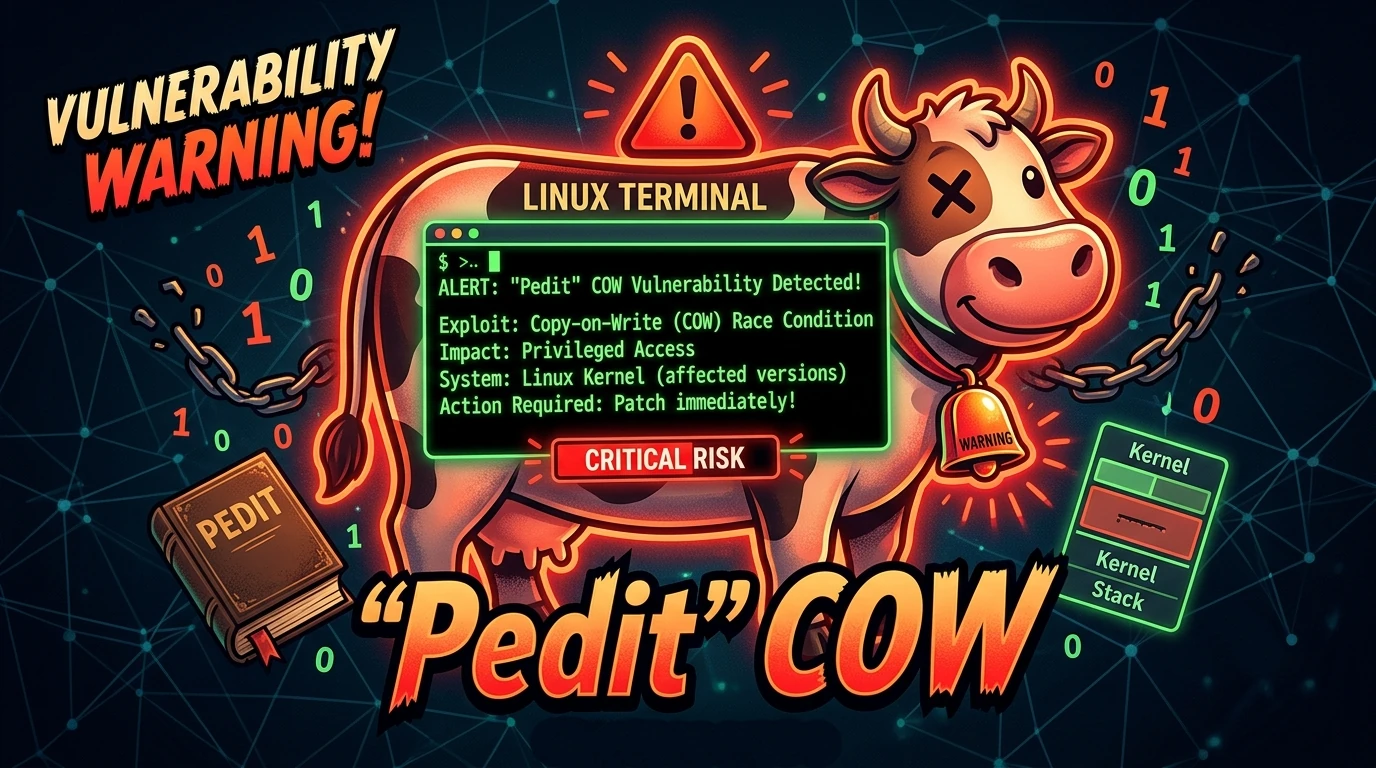
Pedit COW Explained: The Linux Kernel Flaw Letting Local Users Become Root
A new Linux kernel vulnerability nicknamed “pedit COW” has become one of the biggest sec…

Best Linux Distros for IoT in 2026: Pi 5, RISC-V, and Edge AI Tested
Linux powers 80% of Internet of Things devices shipped in the US, from your Home Assistant hub to industrial sensors at Ford plants. With Raspberry Pi 5, cheap RISC-V boards,…

QuemOS Linux: A Reliable, Up-to-Date and Open-Source Operating System
QuemOS Linux is a modern and reliable operating system designed to offer users an up-to-date, secure, and stable computing experience. Based on Debian stable, QuemOS provides a safe and open-source environment for users to run their applications with ease. One of the significant features of QuemOS is its current and stable operating system. The team… Read More »