
Running local AI on Linux is more accessible than you might expect. You do not necessarily need a new workstation, an expensive graphics card, or another monthly subscription to get started.
A Linux computer with 16GB of RAM can run smaller language models for tasks such as rewriting text, explaining code, brainstorming ideas, and summarizing short documents. Whether the experience feels comfortable depends on your processor, available memory, model settings, and GPU support.
The important distinction is between getting a model to load and getting useful work done at a speed you can tolerate.
This guide explains how to install Ollama on Linux, choose a sensible starting model, check whether your GPU is being used, and understand what stays private. It also covers the limitations you should know before spending money on an upgrade.
Quick answer: A 16GB Linux PC is a practical starting point for local AI. Begin with a small, quantized model, keep your context window modest, and test your actual workload before buying hardware. A dedicated GPU can improve performance, but CPU-only operation is enough to explore the basics.
Why Run Local AI on Linux?
Cloud AI services are convenient, but running a model on your own computer gives you more control over how you use it.
For Linux enthusiasts, that control is a major part of the appeal.
Keep supported tasks on your own machine
With a downloaded local model, inference—the process of generating an answer—can happen on your computer.
That can be useful when working with personal notes, unpublished drafts, or code you prefer to keep off external services. However, privacy depends on the entire setup. A local model connected to an online search tool or cloud service can still send information outside your machine.
Avoid a mandatory per-message subscription
You can run downloaded models without paying a cloud provider for each request.
There are still costs: electricity, storage, hardware, and your time. Model licenses also vary, so check the license before using a model commercially or redistributing it.
Work without a continuous internet connection
After installing the software and downloading a suitable model, ordinary local text generation can work offline.
Downloads, updates, cloud models, and online tools still require internet access.
Learn how AI software actually works
Running local AI on Linux introduces useful concepts such as quantization, context length, GPU memory, and model serving.
You can experiment with these settings directly and see how they affect your own computer.
Can You Run Local AI on a 16GB PC?
Yes, but choosing the right model matters more than choosing the biggest download.
A language model needs memory for its weights, runtime overhead, and the working data associated with your conversation. Your Linux desktop, browser, and other applications also need room.
That means a computer with 16GB of installed RAM does not have 16GB available exclusively for AI.
Here is a practical starting guide:
| System RAM | Sensible starting point | Main limitation |
|---|---|---|
| 8GB | Small quantized models around 1–3 billion parameters | Limited room for multitasking and long conversations |
| 16GB | Quantized models around 3–8 billion parameters | Larger models and longer context can create memory pressure |
| 32GB | More flexibility, including some quantized models around 14 billion parameters | CPU performance may become the main bottleneck |
These are planning estimates, not guaranteed compatibility limits or measured benchmarks. Architecture, quantization, context length, and GPU offloading can change the result substantially.
For a 16GB computer, starting with a model around four billion parameters is a reasonable way to learn without immediately pushing the machine to its limits.
If Linux itself is already sluggish, address that first. Our guide to fixing common Linux performance issues covers useful checks.
RAM vs. VRAM: What Is the Difference?
This distinction causes plenty of confusion when people first explore local AI.
RAM is the system memory used by your processor and applications.
VRAM is the dedicated memory on a discrete graphics card.
A computer with 16GB RAM and a graphics card with 8GB VRAM does not behave like a GPU with 24GB VRAM. Some software can split a workload between CPU and GPU, but memory placement and transfer speeds still affect performance.
Integrated graphics commonly share system memory. They should not be assumed to provide the same acceleration or software support as a supported dedicated GPU.
Before buying hardware, check the current Ollama hardware support documentation. Compatibility depends on the exact GPU and supported software stack.
What Does Quantization Mean?
Quantization reduces the precision used to store a model’s numerical weights.
For everyday users, the practical result is that a quantized model usually requires less memory and disk space than a higher-precision version of the same model.
There can be a quality trade-off, and different quantization methods behave differently. However, quantization is one reason useful language models can run on ordinary desktop hardware.
You may see labels such as Q4 or Q8. These refer to quantization formats or precision families, rather than the number of parameters.
A “4B” model and a “Q4” model describe different things:
- 4B means approximately four billion parameters.
- Q4 generally indicates a form of approximately four-bit quantization.
Always check the specific model listing rather than judging memory requirements from one label.
How to Install Ollama on Linux
Ollama provides a straightforward way to download and run language models from the terminal.
The following steps assume a Linux installation using systemd, which is common on Ubuntu, Linux Mint, Fedora, and many Debian installations. Other init systems require different service-management commands.
Refer to the official Ollama Linux installation guide for current platform instructions.
1. Check your available memory and storage
Open a terminal and run:
free -h
df -h /
The first command shows memory usage. The second shows available space on your root filesystem.
Model downloads can consume several gigabytes each. Leave space for updates, additional models, and normal system use.
If your model storage lives on a separate filesystem, check that filesystem too.
2. Download and inspect the installer
Download the official installation script:
curl -fsSL https://ollama.com/install.sh -o ollama-install.shOpen it for inspection:
less ollama-install.shPress q to exit the viewer.
When you are ready to install:
sh ollama-install.shThe installer may request administrator privileges for system changes.
3. Verify the installation
Check that the command is available:
ollama --versionOn a systemd installation, check the service:
systemctl status ollamaIf necessary, start it:
sudo systemctl start ollamaFor troubleshooting, inspect recent service logs:
journalctl -u ollama -n 50 --no-pagerRun Your First Local AI Model
A concrete starting option is Qwen3 4B, which has a published Ollama model tag.
Download and run it with:
ollama run qwen3:4bThe first launch downloads the model. Later launches reuse the local copy.
Start with a simple prompt:
Explain Linux file permissions to a beginner in 200 words. Include one example using chmod.
Then try a task you would actually use regularly:
Rewrite this paragraph for clarity while preserving its meaning and factual claims.
A model’s usefulness depends on your workload. A good answer to a short general question does not prove that the same model can reliably debug a large application or summarize a lengthy technical document.
To leave the interactive session, enter:
/byeList downloaded models with:
ollama listRemove one you no longer need with:
ollama rm qwen3:4bCheck Whether Ollama Is Using Your GPU
While the model is running, open another terminal and enter:
ollama psAccording to the Ollama FAQ, the processor column indicates how the model is loaded:
| Processor display | Meaning |
|---|---|
100% CPU | The model is loaded into system memory for CPU execution |
100% GPU | The model is loaded entirely onto the GPU |
| A CPU/GPU split | The model is distributed between CPU and GPU |
This is more useful than assuming acceleration is working because a graphics card is installed.
For NVIDIA hardware, this command can also help confirm that the driver recognizes the GPU:
nvidia-smiAMD support depends on the specific hardware and supported runtime. Check compatibility before installing additional driver packages.
What Can Local AI on Linux Actually Do?
Smaller models can be useful, provided you give them focused tasks and review their answers.
Rewrite and organize text
Try improving an email, shortening a paragraph, turning notes into a checklist, or generating alternative headlines.
These tasks are easy to assess because you can compare the output directly with the source.
Explain short code examples
A local model can help explain a Bash function, describe a regular expression, or suggest why a small Python script fails.
Treat generated commands and code as suggestions. Read them before execution, especially when they modify files or require administrator privileges.
Summarize short documents
Pasting a short passage into a model can work well for extracting key points.
An ordinary chat model does not automatically read files elsewhere on your computer. You need to supply the content or use software that explicitly handles document ingestion.
Large PDFs and collections of documents require additional consideration, including text extraction, context limits, and potentially a retrieval system.
Brainstorm without opening a cloud service
Article outlines, project names, study questions, and alternative approaches to a problem are useful starting tasks.
For factual research, verify claims against reliable sources. A local model’s confident wording does not guarantee accuracy.
Where a 16GB PC Starts to Struggle
The most common constraints are larger models, longer context, and limited processing speed.
Long conversations consume more memory. The context window includes the information the model must keep available, so extending it can significantly increase memory requirements.
Large models can be impractically slow on a CPU. A model fitting into memory does not guarantee a comfortable chat experience.
Heavy multitasking reduces headroom. Browsers, development tools, virtual machines, and AI models compete for the same resources.
Swap is not a performance upgrade. It may prevent some out-of-memory failures, but sustained swapping can make generation painfully slow.
Our Linux swap guide explains the role of swap in more detail.
How to Improve Performance Before Buying Hardware
Start with changes that cost nothing:
- Choose a smaller model. Compare answer quality on your real tasks.
- Close memory-heavy applications. Check available RAM before loading the model.
- Keep the context window modest. Avoid increasing it without a reason.
- Use a fresh conversation for unrelated tasks. This limits unnecessary context growth.
- Confirm GPU usage. Use
ollama psinstead of guessing. - Keep model files on an SSD where possible. This can improve loading, though it does not replace compute performance.
For the interactive session, you can explicitly request a 4,096-token context window:
/set parameter num_ctx 4096Actual resource needs still depend on the model and workload.
Is Local AI Really Private?
Local inference can keep your prompts on your own machine, but “local” should describe the whole workflow.
Ollama also supports cloud-related features. If you want to disable them in a systemd service installation, open a service override:
sudo systemctl edit ollamaAdd:
[Service]
Environment="OLLAMA_NO_CLOUD=1"
Save the override, then apply it:
sudo systemctl daemon-reload
sudo systemctl restart ollama
The official FAQ documents this environment variable and explains that disabling cloud features removes access to Ollama cloud models and web search.
Third-party interfaces, browser extensions, and external tools have their own behavior. Disabling Ollama’s cloud features does not control every other application on your computer.
Ollama binds to localhost by default. Keep that default for a personal setup unless you understand how to secure network access.
For broader protection, see our guide to hardening a Linux system.
Should You Upgrade Your PC for Local AI?
Test your current hardware first.
If a small model already handles your tasks at an acceptable speed, an upgrade may provide little practical benefit.
Consider more RAM when memory capacity prevents the model or context you need from fitting comfortably. Consider a supported GPU when generation speed is the main problem.
For buyers in the United States or Canada, compare the total local cost: the GPU, any power-supply upgrade, electricity, sales tax, and return policy. A cheaper used card is poor value if its VRAM or software support does not meet your needs.
Avoid choosing hardware solely by gaming performance. AI workloads also depend heavily on memory capacity and runtime compatibility.
Frequently Asked Questions About Local AI on Linux
Can I run local AI on Linux without a GPU?
Yes. Ollama can run supported models on the CPU. Smaller quantized models are a sensible starting point, but speed depends heavily on your processor and settings.
Is 16GB RAM enough for Ollama?
It is enough to explore many smaller quantized models. Start conservatively and leave memory available for Linux and other applications. Larger models and long context windows may require more memory.
Does Ollama work offline?
Downloaded local models can generate responses offline. Installation, model downloads, updates, cloud models, and online tools require a connection.
Which Linux distribution is best for local AI?
Start with a distribution you already maintain comfortably. Check the runtime’s installation requirements and your hardware’s driver support before changing distributions.
Can a local model replace a paid AI subscription?
For some writing, summarization, and coding tasks, it may cover your needs. Smaller local models can still fall short on difficult reasoning, large projects, current information, and integrated tools.
Are all downloadable AI models open source?
No. Downloadable weights do not automatically imply an open-source license or unrestricted use. Read the license for the exact model you choose.
Is Local AI on Linux Worth Trying?
A 16GB Linux PC gives you a practical place to begin.
Install Ollama, download a smaller model, and test it on a few tasks you repeat every week. Check memory usage, confirm whether GPU acceleration is active, and judge the answers as carefully as you would judge any other software tool.
The useful question is whether your computer can handle your work comfortably.
For short writing tasks, explanations, and experimentation, the answer may already be yes.
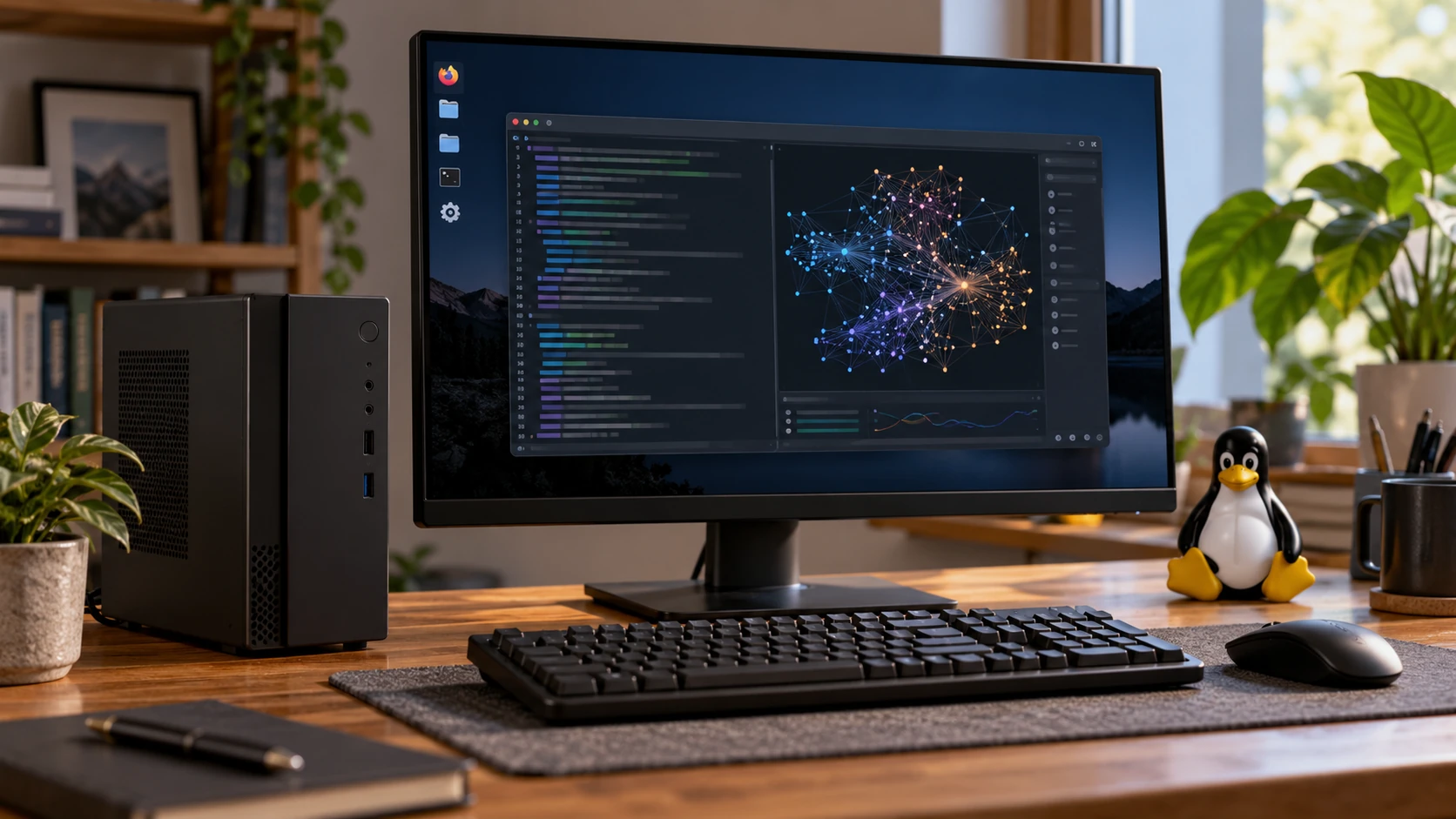
Run AI Locally on Linux: What Can a 16GB PC Actually Handle?
Running local AI on Linux is more accessible than you might expect. You do not necessarily need a ne…
Linux Mint 27 “Adrien”: Release Date, New Features and Upgrade Guide
Linux Mint 27 “Adrien” arrives Christmas 2026 on Ubuntu 26.04 LTS. See what’s new, why point release…

Fortnite on Linux: Release Date, Requirements and Which Distros Will Work
Short answer: Epic Games confirmed on October 14, 2026 that Fortnite is coming to Linux, but there’s…
Best Linux Distro for Developers in 2026: 7 Top Picks by Use Case
The best Linux distro for developers is Ubuntu LTS for compatibility, Fedora Workstation for up-to-d…

Immutable Linux Distros Explained: The Image-Based OS Revolution in 2026
Immutable Linux distros have moved from a niche experiment to a mainstream desktop option in 2026. F…

GhostLock: A 15-Year Linux Kernel Bug Has a 5-Second Public Root Exploit
A Linux kernel vulnerability that has been hiding in plain sight since 2011 was publicly disclosed o…