
Switching to Linux can breathe new life into an aging laptop, boost your privacy, and hand you full control over your operating system — but if you’ve never done it before, the process can feel intimidating. This guide walks you through how to install Linux on a laptop, from choosing the right distribution to fixing the most common post-install hiccups, so you can get a stable, working system on the first try.
Whether you’re installing Linux alongside Windows (dual-boot) or wiping your laptop entirely, the steps below apply to almost any modern laptop from Dell, Lenovo, HP, Asus, or Acer.
Before You Start: What You Need
Before you learn how to install Linux on a laptop, gather these essentials:
- A USB flash drive (8GB or larger) — this becomes your installer
- A second computer to create the bootable USB
- A stable internet connection for downloads and updates
- Your laptop’s charger — never install an OS on battery power alone
- 30–60 minutes of uninterrupted time
Most modern laptops handle Linux well, but if yours has an Nvidia GPU or a very new Wi-Fi chipset, expect a few extra driver steps covered later in this guide.
Step 1: Choose the Right Linux Distribution
Not every Linux distribution (“distro”) suits every laptop or skill level. For beginners installing Linux on a laptop for the first time, three options stand out:
- Ubuntu — the most beginner-friendly, with the largest community and best hardware support
- Linux Mint — feels familiar to Windows users and runs light on older hardware
- Fedora Workstation — newer software packages, great for developers and power users
If your laptop is older or has limited RAM (4GB or less), lightweight distros like Xubuntu or Lubuntu will feel noticeably faster than the full Ubuntu desktop.
Step 2: Back Up Your Data
This step is non-negotiable. Installing Linux — especially if you plan to replace Windows entirely — can erase your existing files if a step goes wrong. Before continuing:
- Copy important files to an external drive or cloud storage
- Export browser bookmarks and saved passwords
- Note down any software license keys you’ll need again
Skipping backups is the single most common regret among first-time Linux installers, so don’t rush past this step.
Step 3: Create a Bootable USB Drive
To install Linux on a laptop, you first need a bootable USB installer:
- Download the
.isofile for your chosen distro from its official website - Download a free tool like Rufus (Windows) or balenaEtcher (Windows/Mac/Linux)
- Insert your USB drive (this will erase everything on it)
- Open Rufus or balenaEtcher, select the
.isofile, and select your USB drive - Click “Start” or “Flash” and wait for the process to finish
Once complete, safely eject the USB drive — it’s now a working Linux installer.
Step 4: Check Your BIOS/UEFI Settings
Before booting into the installer, adjust a few firmware settings so your laptop recognizes the USB drive:
- Restart your laptop and repeatedly press the BIOS key (usually F2, F10, F12, Esc, or Del — check your laptop’s manual)
- Disable Secure Boot if the distro you chose requires it (Ubuntu and Mint usually don’t need this)
- Disable Fast Boot, which can prevent USB drives from being detected
- Set the USB drive as the first boot device in the boot order menu
- Save changes and restart
Step 5: Partition Your Hard Drive
When your laptop boots from the USB drive, the installer will ask how to use your disk space. You have three common choices:
- Erase disk and install Linux — simplest option, replaces your current OS entirely
- Install alongside Windows — creates a dual-boot menu so you can choose your OS at startup
- Manual partitioning — for advanced users who want custom partition sizes
For most first-timers learning how to install Linux on a laptop without losing Windows, “Install alongside Windows” is the safest and most popular choice.
Step 6: Install Linux Step by Step
With your partitioning method chosen, the actual installation is straightforward:
- Boot from the USB drive and select “Try or Install Linux”
- Choose your language, keyboard layout, and time zone
- Connect to Wi-Fi if prompted (this lets the installer fetch updates)
- Select your partitioning option from Step 5
- Create your username, computer name, and password
- Click Install and wait 15–25 minutes for the process to complete
- Restart when prompted and remove the USB drive
Your laptop will now boot into Linux — or, if you dual-booted, into a menu letting you choose between Linux and Windows.
Step 7: Fix Common Post-Install Issues
Even a smooth install can leave a few loose ends. Here’s how to resolve the most frequent problems after installing Linux on a laptop:
Wi-Fi not working: Open a terminal and run sudo apt update && sudo ubuntu-drivers autoinstall (Ubuntu/Mint) to pull in proprietary Wi-Fi drivers, then reboot.
Screen brightness keys not responding: Add acpi_backlight=vendor to your GRUB boot parameters via /etc/default/grub, then run sudo update-grub.
Touchpad gestures missing: Install gnome-tweaks or your desktop environment’s settings app to enable two-finger scroll and tap-to-click.
Battery draining faster than on Windows: Install TLP (sudo apt install tlp) to enable automatic power-management tuning.
External monitor or HDMI not detected: Update graphics drivers through your distro’s “Additional Drivers” or “Software & Updates” tool, especially on laptops with Nvidia GPUs.
If you hit a wall, your distro’s official forum or the Linux community on Reddit is usually the fastest place to get help — and it’s worth bookmarking our Linux laptop compatibility guides for hardware-specific tips before you buy your next machine.
FAQ: Installing Linux on a Laptop
Do I need to be tech-savvy to install Linux on a laptop? No. Modern installers like Ubuntu’s guide you through every step with plain-language prompts, and no command-line knowledge is required for a standard install.
Can I install Linux without deleting Windows? Yes. Choosing “Install alongside Windows” during setup creates a dual-boot system, letting you pick your OS each time you start the laptop.
Will installing Linux void my laptop’s warranty? Generally no — installing a different operating system does not void hardware warranties in the US, though it’s worth checking your manufacturer’s specific policy.
How much disk space does Linux need? Most distros recommend at least 25GB of free space, though 50GB or more gives you comfortable room for apps and updates.
Final Thoughts
Learning how to install Linux on a laptop is far less risky than it sounds once you back up your data, create a proper bootable USB drive, and follow the installer’s prompts. Within an hour, most laptops — even older ones — can be running a faster, more customizable, and more private operating system than they started with.

Best Linux Distro for Developers in 2026: 7 Top Picks by Use Case
The best Linux distro for developers is Ubuntu LTS for compatibility, Fedora Workstation for up-to-d…
Immutable Linux Distros Explained: The Image-Based OS Revolution in 2026
Immutable Linux distros have moved from a niche experiment to a mainstream desktop option in 2026. F…

GhostLock: A 15-Year Linux Kernel Bug Has a 5-Second Public Root Exploit
A Linux kernel vulnerability that has been hiding in plain sight since 2011 was publicly disclosed o…
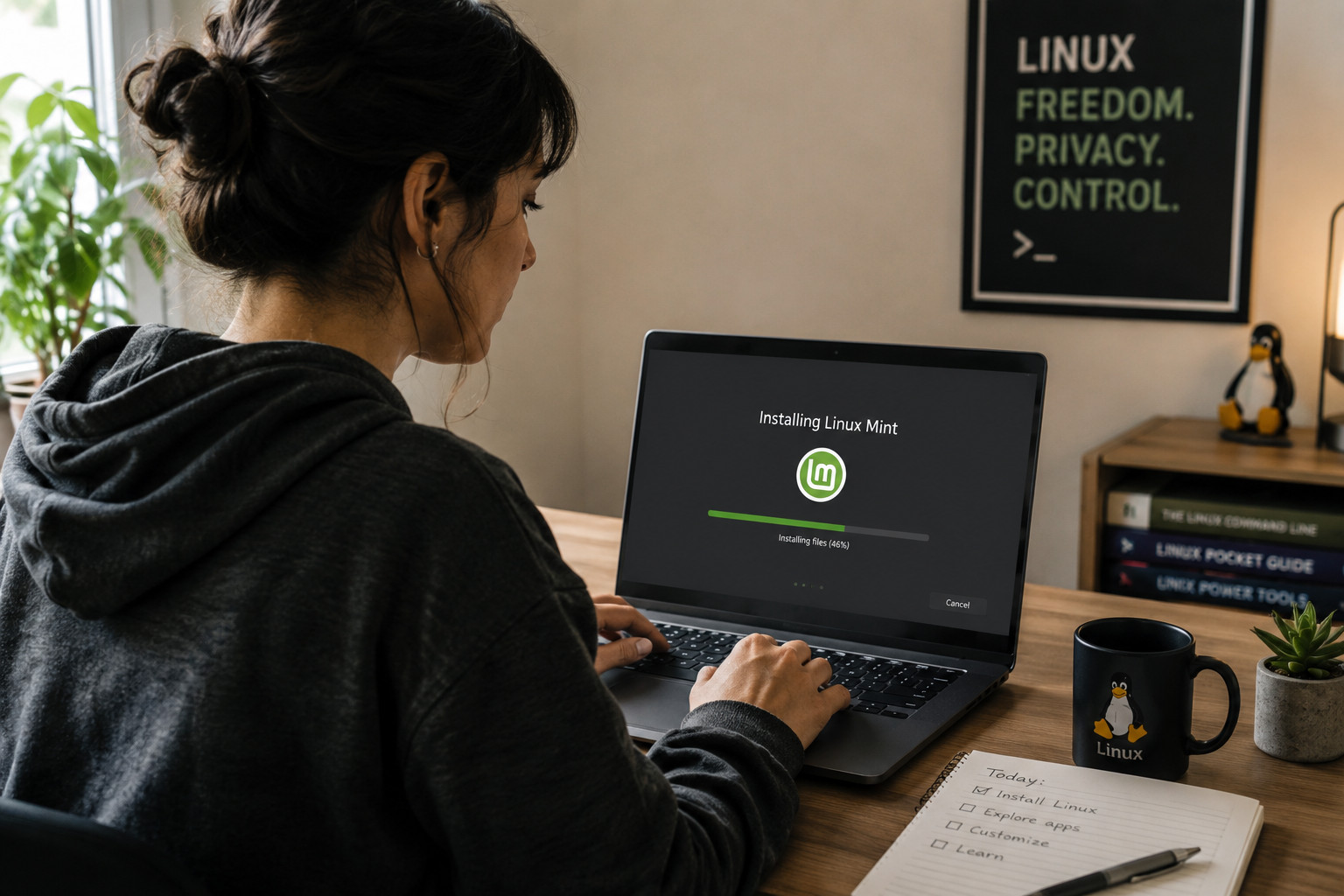
How to Install Linux on a Laptop: A Step-by-Step Guide – 2026
Switching to Linux can breathe new life into an aging laptop, boost your privacy, and hand you full …
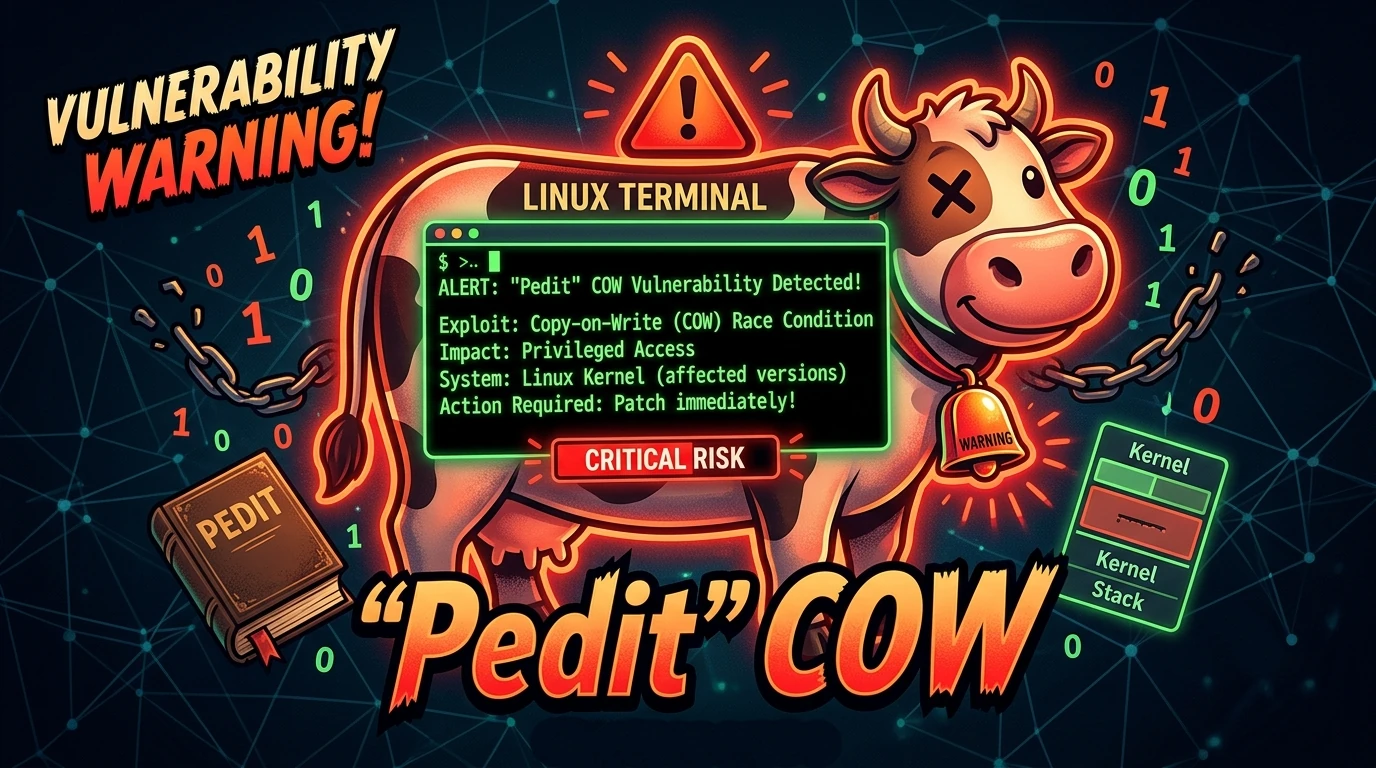
Pedit COW Explained: The Linux Kernel Flaw Letting Local Users Become Root
A new Linux kernel vulnerability nicknamed “pedit COW” has become one of the biggest sec…
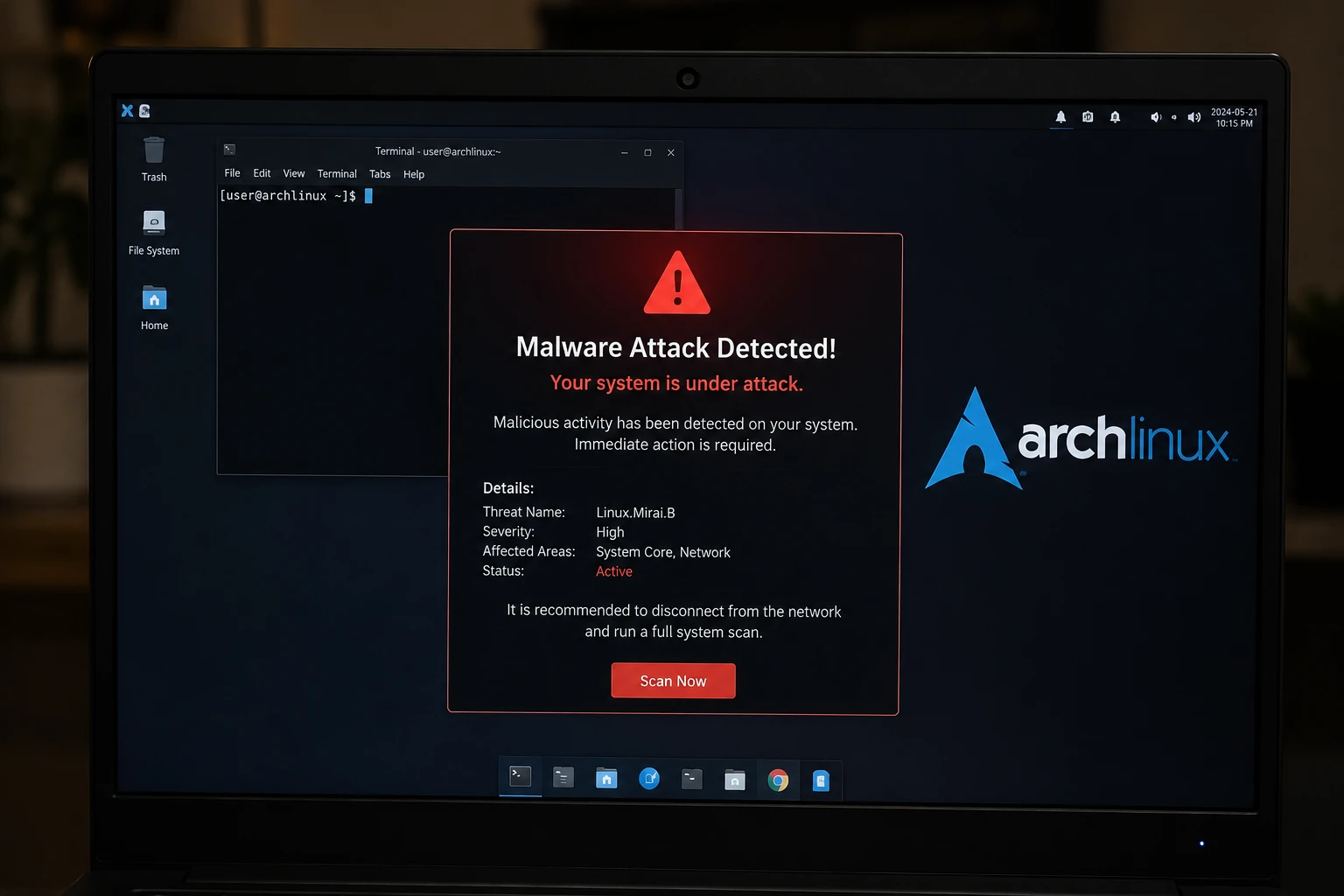
The AUR Malware Attack Exposed a Fact Most Arch Users Don’t Know
Here is something most Arch Linux users have never thought carefully about: the Arch User Repository…

What Are AI Agents? A Simple Guide to 2026’s Biggest Tech Shift

Best Antivirus Software in 2026: Free and Paid Options Compared

Best Linux Distros for IoT in 2026: Pi 5, RISC-V, and Edge AI Tested
Linux powers 80% of Internet of Things devices shipped in the US, from your Home Assistant hub to industrial sensors at Ford plants. With Raspberry Pi 5, cheap RISC-V boards,…