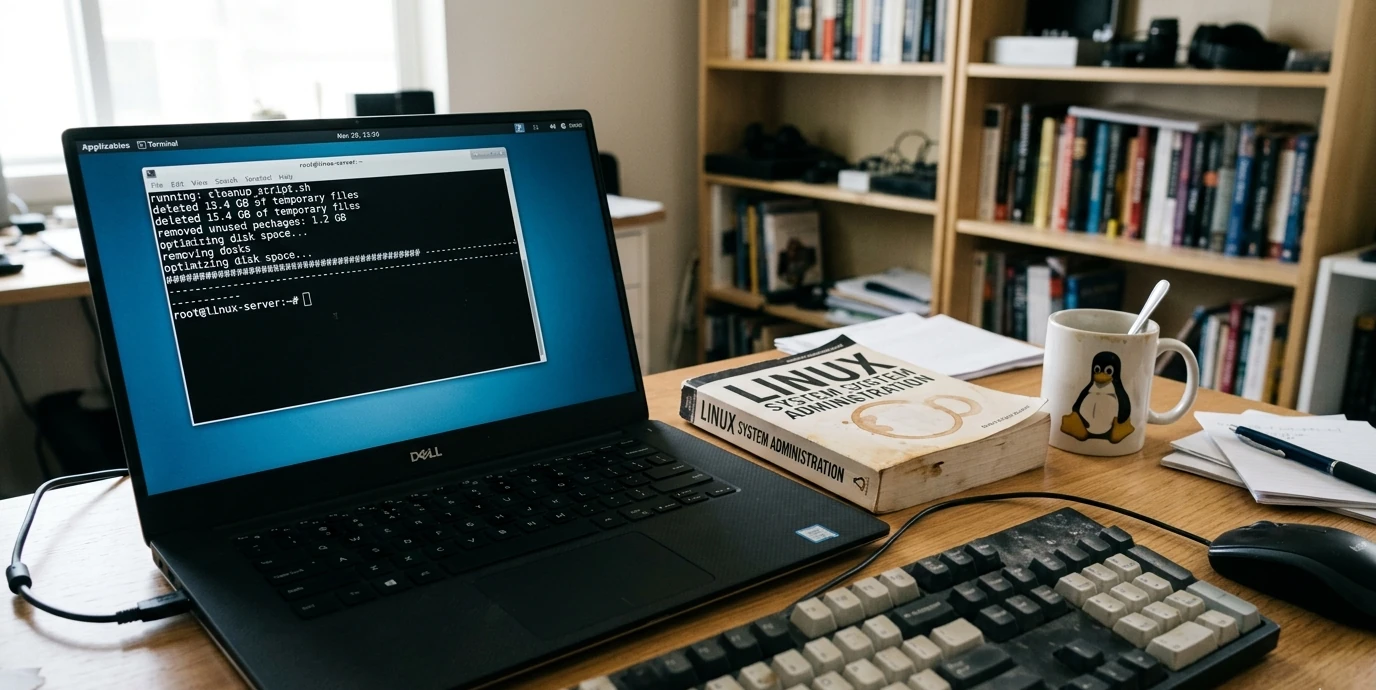
If your Linux system keeps running out of disk space, you’re not alone. Over time, cached packages, old logs, and unused files silently pile up—until suddenly you’re dealing with a full disk and a sluggish system.
The good news? You can automate most of this cleanup process and keep your system running smoothly without constant manual intervention.
In this guide, you’ll learn how to safely set up automatic disk cleanup in Linux, without deleting important data.
Why Disk Space Fills Up So Fast
Even if you don’t download large files regularly, Linux systems accumulate:
- Package cache from updates
- Old kernel versions
- System logs
- Temporary files
- Orphaned dependencies
Left unmanaged, these can consume several gigabytes over time.
Step 1: Check What’s Using Your Disk Space
Before automating cleanup, identify where space is going:
df -h
For a more detailed breakdown:
du -h --max-depth=1 / | sort -hr
👉 This helps you avoid blindly deleting important data.
Step 2: Clean Package Cache Automatically
Most Debian/Ubuntu-based systems store downloaded packages in:
/var/cache/apt/archives
Clean it manually:
sudo apt clean
Remove unnecessary packages:
sudo apt autoremove -y
Step 3: Remove Old Kernels Safely
Old kernels can take up a lot of space.
List installed kernels:
dpkg --list | grep linux-image
⚠️ Always keep:
- Your current kernel
- One previous version (backup)
Remove unused ones:
sudo apt remove linux-image-<version>
Step 4: Limit System Log Size
Logs can grow indefinitely if not controlled.
Check log size:
journalctl --disk-usage
Limit logs to 100MB:
sudo journalctl --vacuum-size=100M
Or keep only 7 days:
sudo journalctl --vacuum-time=7d
Step 5: Set Up Automatic Cleanup (Cron Job)
Now let’s automate everything.
Open cron:
sudo crontab -e
Add this line to run cleanup weekly:
0 3 * * 0 apt clean && apt autoremove -y && journalctl --vacuum-time=7d
What this does:
- Runs every Sunday at 3 AM
- Cleans package cache
- Removes unused packages
- Deletes old logs
Step 6: Clean Temporary Files Automatically
Temporary files live in /tmp and /var/tmp.
Most systems already clean /tmp, but you can enforce it:
sudo systemctl enable tmp.mount
Or use:
sudo tmpwatch 7d /tmp
Step 7: Find and Remove Large Files
Sometimes the issue is just a few big files.
Find files over 1GB:
find / -type f -size +1G 2>/dev/null
👉 Review carefully before deleting anything.
Bonus: Use a Visual Tool (Optional)
If you prefer a GUI:
baobab(Disk Usage Analyzer)ncdu(terminal-based, very fast)
Install:
sudo apt install ncdu
Run:
ncdu /
How Much Space Can You Recover?
Typical cleanup results:
- Package cache: 500MB–2GB
- Old kernels: 500MB–1GB
- Logs: 100MB–1GB
👉 Total: often 1–5GB freed instantly
Is Automatic Cleanup Safe?
Yes—if you stick to:
apt cleanapt autoremovejournalctl vacuum
Avoid scripts that:
- Delete random files in
/ - Remove unknown dependencies
- Use
rm -rfblindly
Common Mistakes to Avoid
- ❌ Deleting active kernel
- ❌ Removing logs completely (can break debugging)
- ❌ Running cleanup too frequently
- ❌ Ignoring disk usage patterns
Performance Benefits
After cleanup, you may notice:
- Faster system updates
- Improved disk performance
- Less system lag
- More available space for apps
Practical Tip: Combine With Monitoring
Set up a simple disk alert:
df -h | grep '^/dev/' | awk '{ print $5 " " $1 }'
Or integrate with monitoring tools later.
Wrap-Up automatic disk cleanup in Linux
Automatic disk cleanup is one of the easiest ways to keep your Linux system healthy over time. With just a few commands and a simple cron job, you can prevent disk space issues before they happen.
Instead of reacting to a full disk, your system will take care of itself quietly in the background.
FAQ
Will this delete my personal files?
No. These steps only target system-generated files.
How often should cleanup run?
Once per week is ideal for most users.
Can I undo cleanup actions?
Package cache deletion is not reversible, but it’s safe.
Does this work on all Linux distros?
Mostly yes, especially Debian/Ubuntu-based systems. Other distros use similar tools.

ISS Is Reaching the End of Its Life?
For more than two decades, the International Space Station (ISS) has been one of humanity’s most impressive engineering achievements. Orbiting Earth at roughly …
How to Automatically Clean Disk Space in Linux (Set Up Smart Auto-Cleanup in Minutes)
If your Linux system keeps running out of disk space, you’re not alone. Over time, cached packages, …

How to Add Swap Virtual Memory in Linux for Better Performance (Without Losing Data)
Running out of memory on a Linux system can slow everything down—or even crash your applications. If…
How to Fix Common Linux Performance Issues + Top Tools to Speed Up Your System
Why Is Your Linux System Running Slow? Linux is known for its speed and efficiency—but even the most…

Top 15 Arch Based Linux Distributions in 2026
Why Choose an Arch Based Linux Distribution? Arch Linux has long been known for its rolling release …

Linux Kernel 7.0: The Next Major Chapter in Linux Development
The Linux ecosystem is preparing for an important milestone: Linux Kernel 7.0. While Linux kernel ve…

Top Irish Linux Distros in 2026
When people say “Irish Linux distros”, they usually mean systems that are developed or headquartered…